
For Models: X1-R, X1, V1-R, V1
Adding A DynaMount To Your Profile
In order to control a DynaMount using one of our apps it first needs to be tied to your profile. Here is how you do it:
- Make sure you have followed the steps to Create A Profile.
- Log in to the DynaMount app of your choice.
- Complete the Wi-Fi Setup steps with your new DynaMount to get it connected to your studio/home Wi-Fi network.
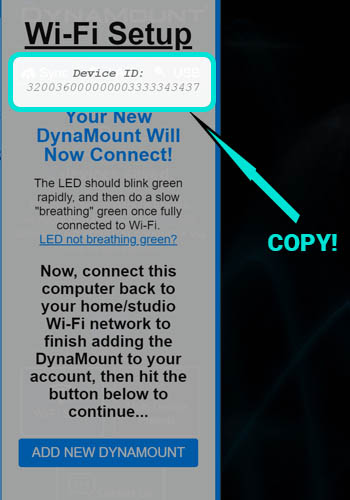
- After the final step of the Wi-Fi Setup process is completed, the app will display the following screen. Copy the 24-digit Device ID just in case it is needed later in this guide.
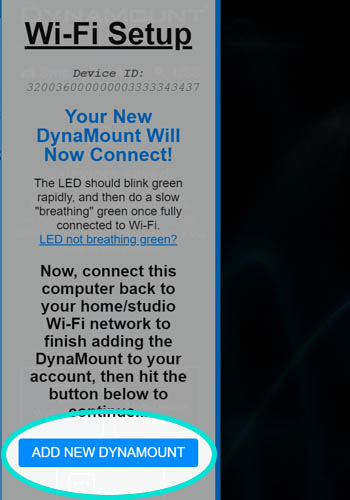
- Ensure that your computer or phone is now connected to your studio/home Wi-Fi network (which the DynaMount is now connected to) and then click “Add New DynaMount”.
- A message will appear letting you know the DynaMount is available for claiming to your profile.
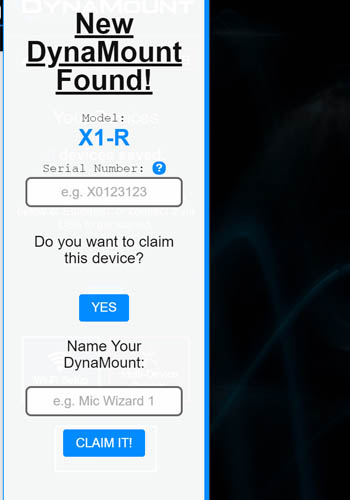
- The Serial Number will most likely be filled in for you automatically. If not, go ahead and enter the Serial Number as found on the silver sticker on the DynaMount itself.
- Give your DynaMount a name (any name you’d like to identify it).
- Click “Claim It”.
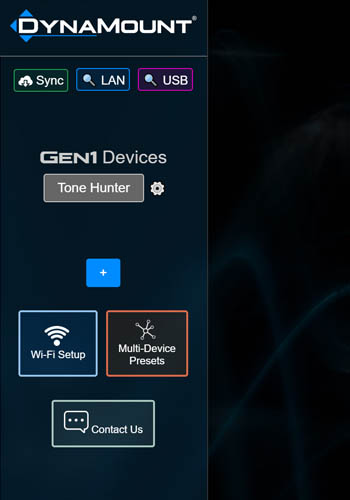
- Your DynaMount will now show up on your list of devices and it has been successfully added to your profile!
- A DynaMount can only be associated with one profile at a time. It must be removed from your profile first if you wish to add it to a different profile.
- To remove a DynaMount from your profile, click the Device Settings (gear) icon for that device, then go to General Settings > Delete Device.