RIZR Quick Start Guide
Please follow this guide to get your new RIZR up and running!
Having trouble or can’t find the information you’re looking for? Please contact us.
The RIZR uses the same “DynaMount” app as Gen2 and Gen1 models. The app is free and available for macOS, iOS, Windows, and Android. Please select the control app(s) of your choice below to install onto your computer or mobile device.
Note, install and use DynaMount app version 2.0.24 or higher (for Mac/PC), or app version 2.5.30 or higher (for iOS/Android) for full compatibility with the RIZR.
- macOS:

- For Mac laptop/desktop computers.
- Requires macOS version 10.10+
- iOS:

- For mobile iPhone/iPad devices.
- Requires iOS version 11.0+
- Android:

- For Android mobile phones/tablets.
- Requires Android version 5.1+
- Windows:

- For Windows laptop/desktop computers.
- Requires Windows version 7+ (see note below)
- Note: The app version available on the Microsoft Store requires Windows version 10+, though for Windows 7/8 users we have a direct app download available here.
- Open the DynaMount app, then either log in with your existing DynaMount profile or click “Create New Profile” and follow the instructions.
- “Role-based” email addresses such as those that start with info@, contact@, admin@, among others may see an error when trying to create a new profile (for spam blocking reasons). If you need to use a role-based email, please contact us and we will be happy to add it manually.
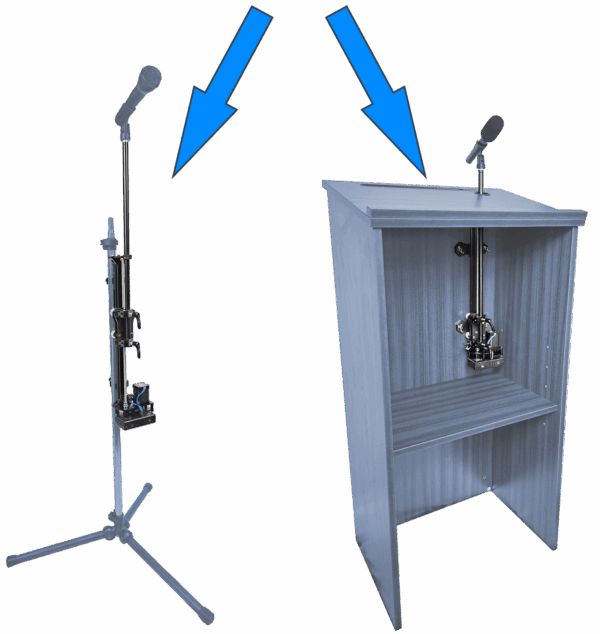
If you purchased a Lectern Mounting Kit with your RIZR, please see the separate installation guide here: Lectern Mounting Kit
Installing The Crab Clamps
- The RIZR comes with two crab clamp adapters for easily securing the unit to a variety of different stands.
- NOTE: The crab clamp adapters are not installed prior to shipping.
- Attach each of the two crab clamp adapters to the RIZR following these steps:
- Slide the crab clamp T-nuts through the slot in the RIZR’s main rail
- NOTE: For convenience, crab clamp adapters can be installed from the top or bottom of the RIZR.
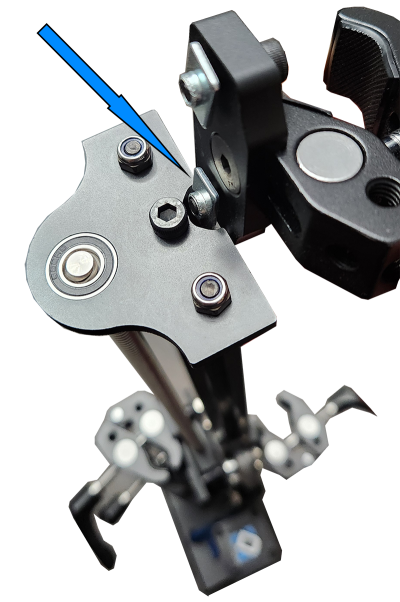
- Use the included hex key to tighten the two screws securing each crab clamp to the rail.
- NOTE: Ensure the crab clamp adapters are straight/lined-up with the rail before tightening the screws.
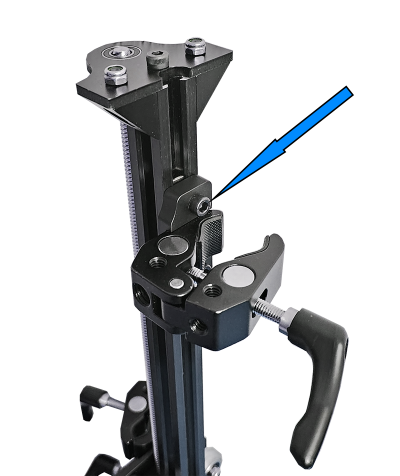
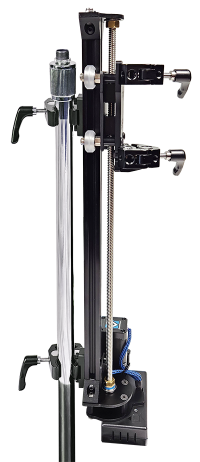
- It is recommended to space the two crab clamp adapters as far apart along the rail as possible (for maximum stability), but their positioning can be adjusted as needed for mounting.
- IMPORTANT: Be sure to install both crab clamp adapters facing the same direction.
- Once the two crab clamp adapters are installed, the RIZR can now be easily secured to any vertical stand by hand-tightening the levers of the crab clamps onto the stand.
- IMPORTANT: Tighten the crab clamp levers firmly enough to secure the position, but do not overtighten or it could strip the threads.
- Warning! When the RIZR is mounted to a stand, periodically check to ensure the crab clamps are still tightly secured in case they have become loosened which is possible over time due to vibrations, accidental bumping of the clamps, temperature changes, etc.
- Warning! When detaching the RIZR from the stand later, remember to support the weight of the RIZR while loosening the crab clamps, otherwise it will drop/fall!
Installing The Mic Pole
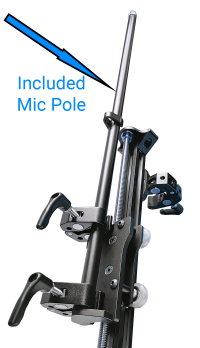
- The RIZR comes with a 22” long pole with a threaded end for affixing the microphone of your choice.
- Secure the Pole to the desired microphone.
- TIP! Use the included black 5/8” Thread Extender if you need a longer threaded portion for securing the microphone (common with some vocal mics).
- With the RIZR itself already secured to the desired stand, the Mic Pole attaches to it using the two integrated crab clamps on the front of the RIZR.
- Firmly hand-tighten the levers on the two crab clamps to secure.
Additional Safety Warnings
- Warning! Only mount the RIZR upright and in a vertical orientation.
- TIP! The RIZR may also be mounted horizontally (level with the ground) or on an incline, however in these orientations you must NOT use any mic pole, since the leverage would cause too much strain on the unit. Instead, when mounted horizontally or on an incline, the microphone must be secured directly to one of the crab clamps.
- Warning! Do not touch any part of the RIZR while the unit is in motion.
- Warning! Do not allow hair or loose clothing articles/jewelry to come into contact with the RIZR.
- Warning! The RIZR is designed so that it will hold its position when power to the unit is cut in most situations. But this is not guaranteed. In some situations (notably if a payload near or over capacity is used), it may be possible for the unit to shift position when power to the unit is cut. Be aware of this possibility and use caution when powering down the unit.
- Warning! Make sure even at the range of motion limits that the stand will remain stable, with the full weight of the mic/payload attached, and that there are no obstructions. Not verifying this could result in the stand tipping over during motions, or in a collision, resulting in damage to the RIZR and/or microphone.
- Warning! The RIZR is not a toy, keep out of reach from children.
- Warning! Do not allow water/rain or other liquids to contact the RIZR.
- Important! If you attach any boom arm (not included) to the top of the mic pole, be sure to balance the load, and ensure the total payload does not exceed capacity.
- If a boom arm is used, keep it as short as possible.
- If a boom arm is used, it is generally recommended to position it such that the boom arm + the mic is oriented straight back over the top of the RIZR for better balance and stability, as opposed to angling the boom arm off to one side or forwards.
- Important! The total payload (including the weight of the mic pole, microphone, and mic clip) must not exceed 4 lb.
- Important! If the included mic cable clip is used to guide the mic cable along the mic pole, ensure the clip points outward so it doesn’t jam against the top of the RIZR.
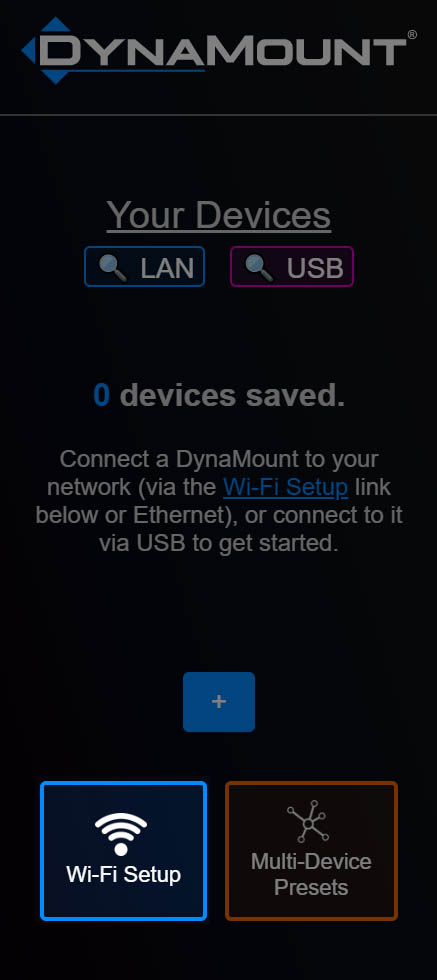
If you would like to control the RIZR wirelessly, click on the “Wi-Fi Setup” button, then follow the instructions to get the RIZR connected to your venue/studio Wi-Fi network.
- Note! If the LED on the DynaMount is SOLID ORANGE after booting up, this just means it was connected via Ethernet on the previous boot. Simply wait for ~30s, and it will automatically switch back to Wi-Fi mode.
- Note! If the LED on the DynaMount is BLINKING GREEN RAPIDLY, it is trying to connect to a Wi-Fi network. If it stays this way for an extended period, it is unable to connect to the network, and perhaps the Wi-Fi credentials stored on the DynaMount need to be reset.
- Note! To clear out old Wi-Fi credentials from the device, press and hold the SETUP button with a pen/pencil for 5s then release.
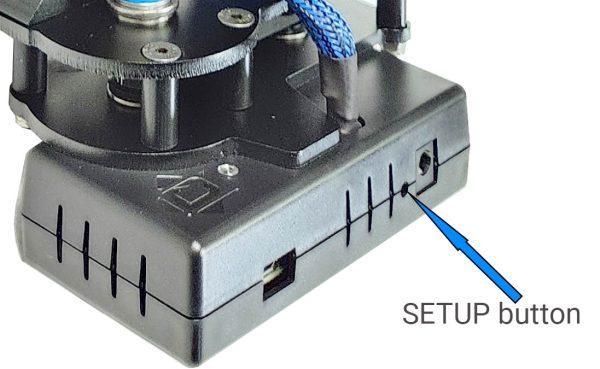
After the DynaMount has been successfully connected to your home/studio Wi-Fi network, the LED will do a SLOW BREATHING GREEN. Make sure your computer/phone is connected to this same network as well.
If you would like to control the RIZR over your network via a hard-wired Ethernet connection, please follow the steps below:
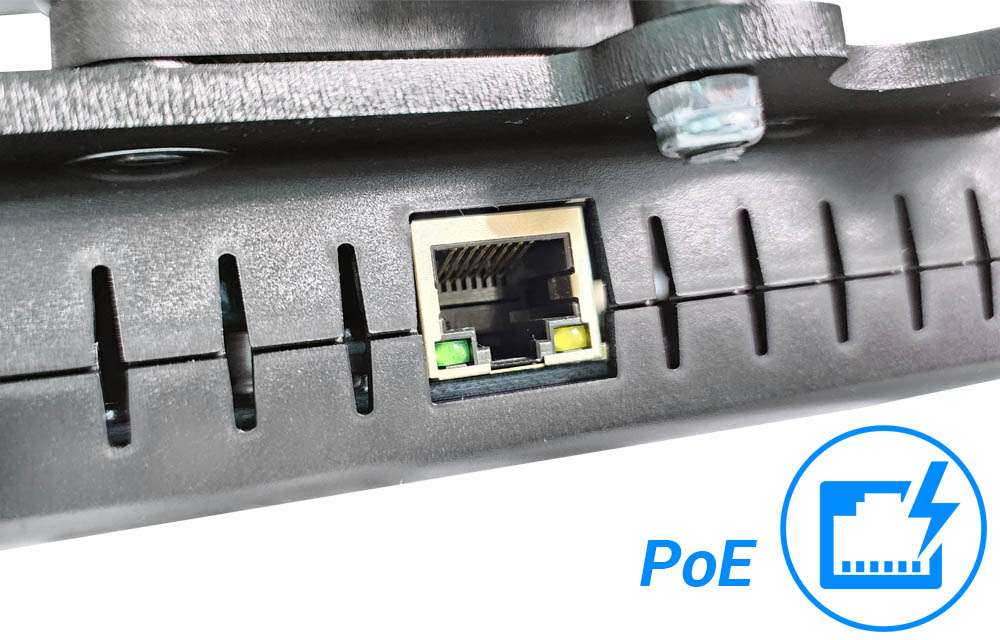
- With the unit powered off, plug in any cat5 or cat6 Ethernet cable between the RIZR and your network router or Ethernet switch.
- Warning! Only plug/unplug an Ethernet cable from the RIZR while the power is OFF.
- Note! For a typical setup, the Ethernet cable needs to connect from the RIZR to your network router/switch (for control over the network). Do NOT plug the Ethernet cable directly from the RIZR to your computer (without following the special setup steps in our Troubleshooting guide).
- If using Power over Ethernet (PoE) for power, it will boot up as soon as the cat6 cable is plugged into a PoE-capable router/switch/injector. The unit will automatically default to Ethernet control (as opposed to Wi-Fi), and you can proceed to the next section of this guide.
- Otherwise, if NOT using PoE, proceed with the steps below:
- Plug in the included 12V power supply, to begin booting up the unit.
- IMPORTANT! While the unit is still booting up (breathing white LED for first ~8 seconds) press and hold the SETUP button with a pen/pencil, then release it when the LED turns ORANGE.
- This tells the unit to connect over Ethernet (as opposed to Wi-Fi)
- The LED will stay SOLID ORANGE for a few seconds while attempting to connect via Ethernet, and then will turn SOLID LIGHT BLUE once fully connected.
- Note! The next time it boots up, the DynaMount will remember that Ethernet was used on the previous boot and will automatically default to Ethernet control, no need to press the SETUP button each time.
If you would like to control the DynaMount via USB cable, please follow the steps below:
- Power up the DynaMount with the included 12V power supply
- Warning! If you plug in the USB cable first, the LED on the unit will turn on but it will not receive enough power to run properly. It is important to plug in the 12V power cable first.
- Once the unit has booted up (blinking blue LED), plug a USB cable from the unit to your computer
- Note! Standard USB cables are typically available only up to ~15ft long. For longer cable runs, we recommend using USB 2.0 “active repeater” style cables.
- Windows users: If drivers do not successfully install automatically, please see the Manual Windows Driver Installation instructions further below.
- Click the small magenta “USB” button above the “Your Devices” list to scan for the USB device
- The LED on the DynaMount will glow MAGENTA while being controlled via USB
Manual Windows Driver Installation
These steps are only needed for Windows users whose computer was unable to automatically install necessary drivers. Usually, Windows 10 is able to install drivers automatically, but Windows 7 users may need to follow this procedure:
- Download the Windows drivers HERE.
- Unzip the file. It is fine to unzip this into your Downloads folder.
- With a USB cable plugged between the DynaMount and your Windows computer, open up your computer’s Device Manager.
- Under “Other Devices” (or possibly “Ports” on Windows 10), right-click on “Photon with WiFi”.
- Select “Update Driver Software”.
- Select “Browse my computer for driver software”.
- Navigate to the unzipped drivers folder you downloaded and unzipped earlier.
- The driver is called “photon.cat”.
- It will prompt to install device software: Particle Ports by Spark Labs, Inc.
- Select “Install”.
- It should say “Windows has successfully updated your driver software” for this device: Photon
- Hit “Close”.
- In the Device Manager you should now see “Photon” under Ports
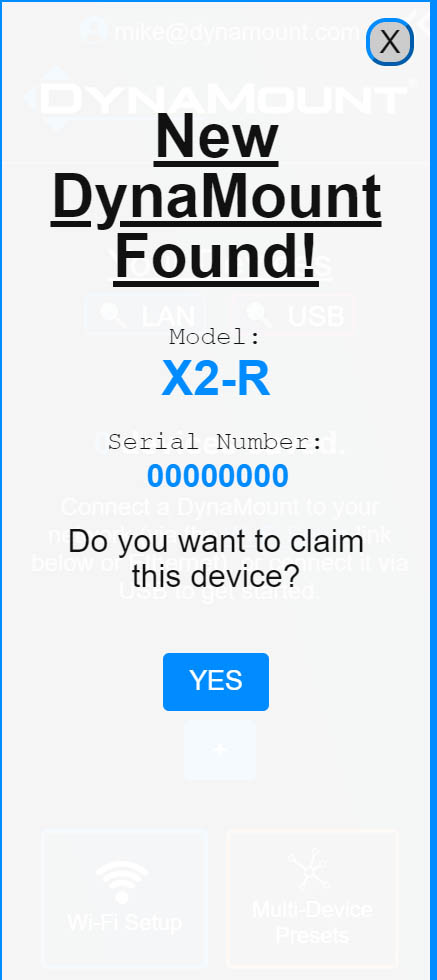
- Once the DynaMount is connected to your network (Wi-Fi/Ethernet) or connected via USB, A “New DynaMount Discovered” message will pop up in the app asking if you would like to claim the device. Click “Yes”.
- If using Wi-Fi/Ethernet and the message does not show up:
- Double-check your computer is connected to the same network as the DynaMount, then try clicking the “LAN” button to scan for units on the network
- If it still does not show up, check the LED on the DynaMount to make sure it is doing a slow breathing green (connected to Wi-Fi) or a solid light blue (connected to Ethernet). Otherwise, the unit may not be connected to your network. LED Color Codes
- If using USB and the message does not pop up, try clicking the “USB” button a couple more times, or try a different USB cable. If it still does not show up, and you are using a Windows computer, double-check that you installed necessary drivers as described in the USB Setup section.
- If using Wi-Fi/Ethernet and the message does not show up:
- Give the DynaMount any name you would like, then click OK.
- You will see a new button with the assigned name appear in the “Your Devices” list
- This button will highlight blue (Wi-Fi/Ethernet) or magenta (USB) indicating the DynaMount is ready to control!
- Click the new unit’s button in the “Gen2 Devices” list to open its control window
- Once opened, a message will appear that the device needs to calibrate. Read the caution message, then click “Calibrate” when ready. The DynaMount will now move and calibrate itself!
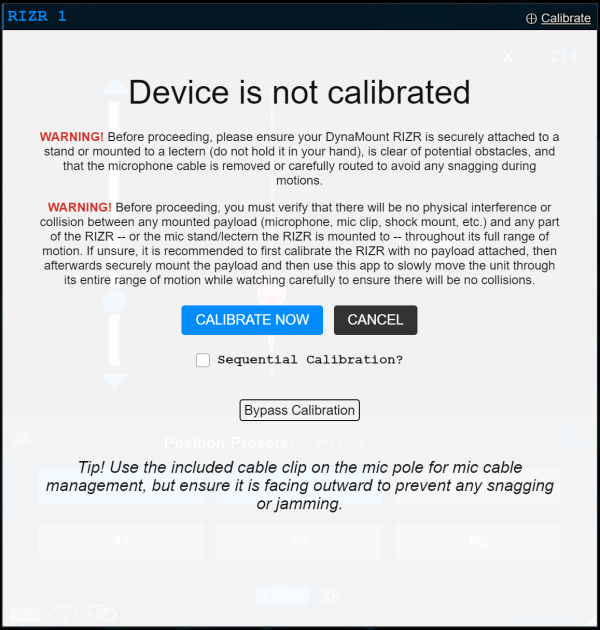
- Once calibration finishes, the control window will appear.
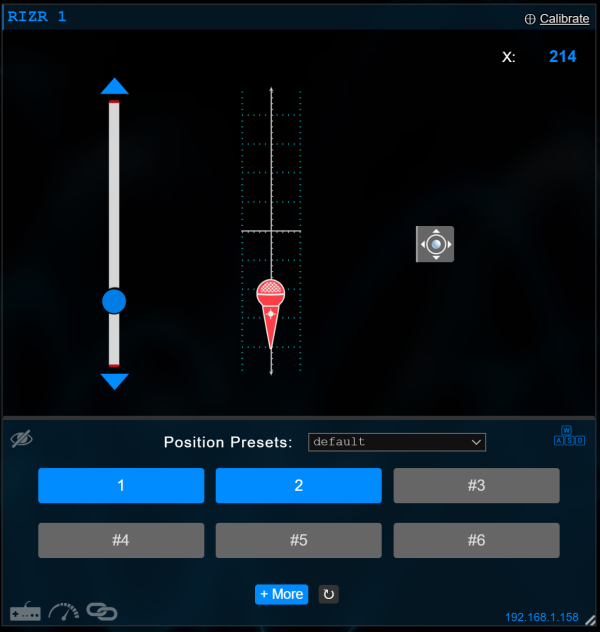
Tip! The RIZR is extremely quiet at low speeds, but makes some audible noise at higher speeds.
- To view all speed settings, click on Device Settings (gear icon) > Motion Settings, where you can prioritize speed vs low noise as needed.
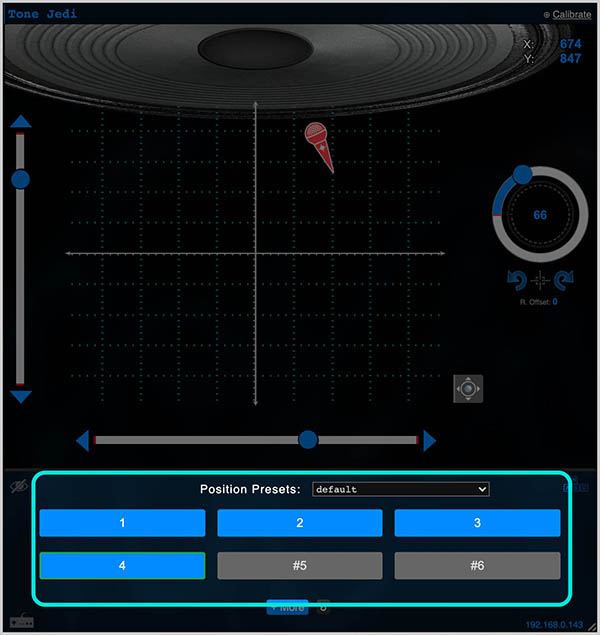
- Now that the unit has calibrated, there are several ways to manipulate the mic position:
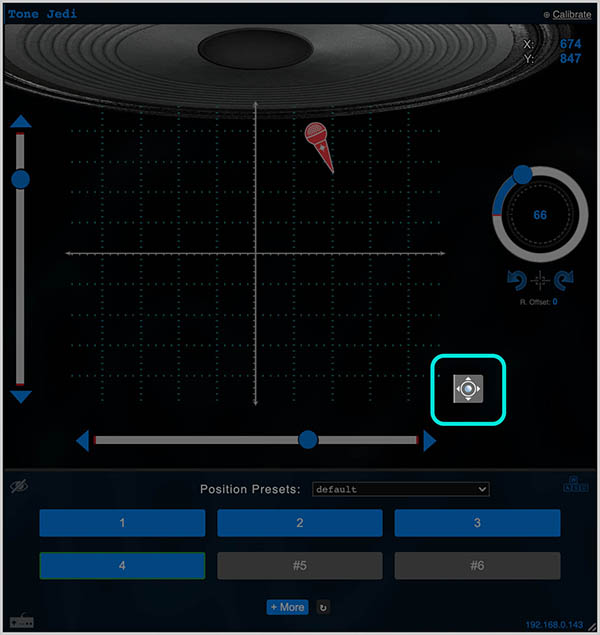
- Virtual Joystick – Click and hold on the ✥ icon in the bottom-right of the control window and a virtual joystick will appear for real-time microphone steering.
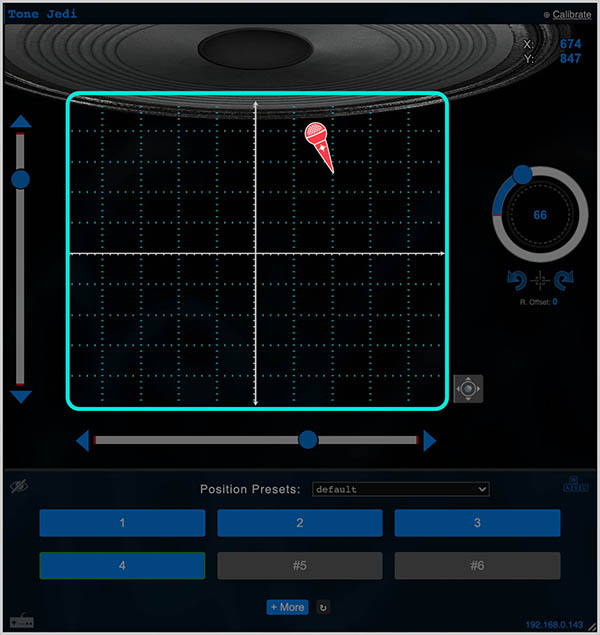
- Click-To-Move – Do a quick click anywhere on the control grid, and the DynaMount will move to that position.
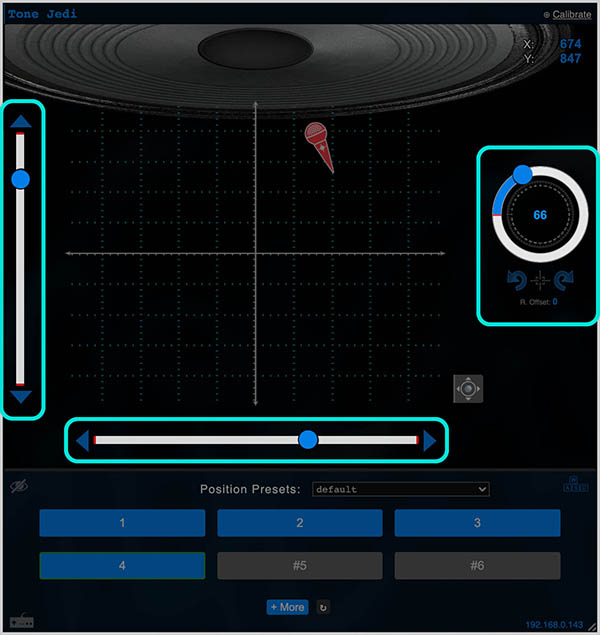
- Sliders – If motion only along one axis at a time is desired, use the control sliders. The DynaMount will move with you as you drag, or you can click a specific spot along the slider.
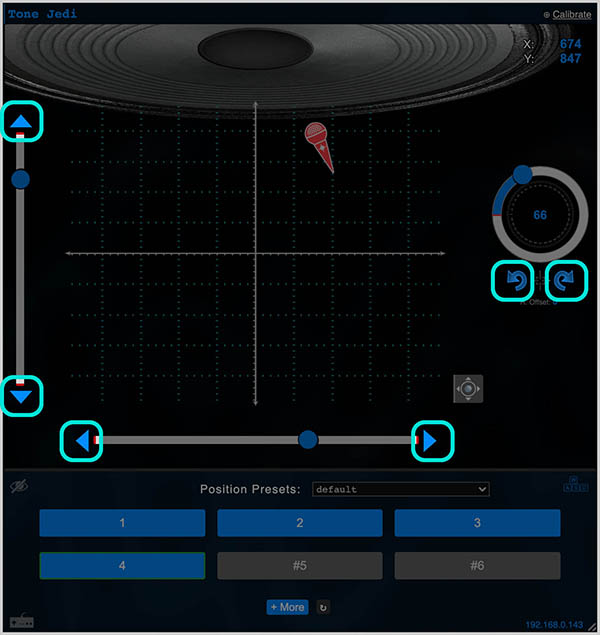
- Nudge Arrows – For fine tuning the position, click the blue triangular nudge arrows to move in one small increment at a time. The size of each nudge can be adjusted, just click the Device Settings icon, then see “Nudge Arrow Settings”.
- Keyboard Hotkeys – Use the WASD keys on your keyboard for axial motions, along with Q and E for mic rotation.
- TIP! Try using the Q and E rotation hotkeys while using the virtual joystick!
- Type Values Directly – If you know exactly where you want to go, simply type the position value into the corresponding text box, then hit Enter.
- PRESET BUTTONS – Saving the best for last! Once you find a position you like, click on any gray (unsaved) preset button, give it a name, and save it. Now you can precisely return to this position any time you want, simply by clicking the blue (saved) preset button!
- Virtual Joystick – Click and hold on the ✥ icon in the bottom-right of the control window and a virtual joystick will appear for real-time microphone steering.